Posts

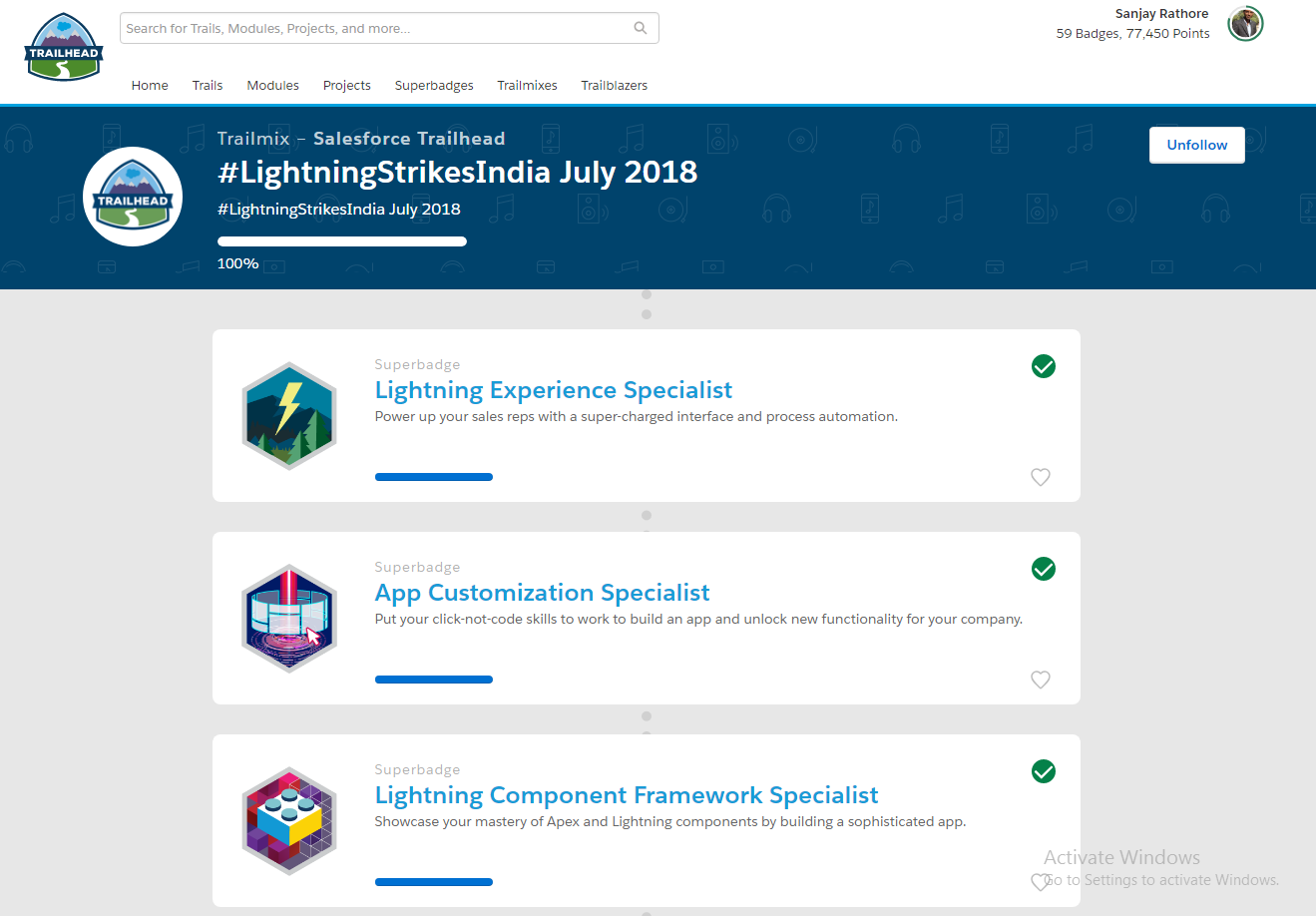
#LightningStrikesIndia July 2018
Image
Tips for Passing the App Customization Specialist Superbadge This article will help you to work through the App Customization Specialist superbadge. I am not intending to give out the answers, just a nudge here and there where I know it can get frustrating. The superbadge covers: *Basic custom fields *Validation rules *Relationship fields *Rollup summary fields *Some advanced formula fields *Some less advanced formula fields *Process Builder *Approval Processes *Lightning app pages *Report builder *Dashboards *Lightning app *Creating a user *Permission sets *Testing!! Help Yourself Succeed *Don’t rush through it *It’s not prescriptive on details – you have to figure out how to achieve each goal (except for things that are used for checking, like metadata labels and API names) *Read the exercise fully – there are gotchas in there designed to catch you out if you just try to race through it. *Enable the Beta Report Builder for Lightning Experience It t...

Creating and Configure Remote Site Settings via the Tooling API

Image
Introducing Tooling API : Salesforce Use Tooling API to build custom development tools or apps for Lightning Platform applications. Tooling API’s SOQL capabilities for many metadata types allow you to retrieve smaller pieces of metadata. Smaller retrieves improve performance, which makes Tooling API a better fit for developing interactive applications.Tooling API provides SOAP and REST interfaces. For example, you can: Add features and functionality to your existing Lightning Platform tools. Build dynamic modules for Lightning Platform development into your enterprise integration tools. Build specialized development tools for a specific application or service. Tooling API exposes metadata used in developer tooling that you can access through REST or SOAP. For detailed descriptions of Tooling API objects and the REST resources and SOAP calls that each object supports, see Tooling API Objects . When to Use Tooling API Use Tooling API when you need fine-grained access t...

Developing Chrome Extensions for Salesforce

Image
Developing Chrome Extensions for Salesforce Chrome extensions are awesome, they provide amazing convenience that is limited only by your imagination. some of created by me: 1. Quick Test Run 2. Quick ChangeSet & Navigator 3. Quick Query Editor and CSV Exporter 4. Quick Debug 5. Quick Shortcut you can download from Chrome Web Store What are extensions? Extensions are small software programs that customize the browsing experience. They enable users to tailor Chrome functionality and behavior to individual needs or preferences. They are built on web technologies such as HTML, JavaScript, and CSS. An extension must fulfill a single purpose that is narrowly defined and easy to understand. A single extension can include multiple components and a range of functionality, as long as everything contributes towards a common purpose. Chrome Extension Structure A Chrome Extension is made up of a JavaScript, HTML, images and JSON. At its core is a manifest file which conta...

Update Apex Page via Tooling API in Salesforce

Update Apex Page via Tooling API in Salesforce What is Tooling Api? Tooling api is for Building custom development tools for Force.com applications. Tooling API makes many development tasks easier. When to use Tooling API? When You want to add functionality to your existing development and integration tools or you want to build specialized development tools for a specific application or service. Tooling API provides both SOAP and REST interfaces. Use REST API if you’re using a language that isn’t strongly typed, like JavaScript. The Tooling REST API can be used just like the Force.com REST API. To update an Apex Page: Steps are below: First we need to create Metadatacontainer object example: Httprequest req =new HttpRequest(); req.setEndpoint(URL.getSalesforceBaseUrl().toExternalForm()+'/services/data/v28.0/tooling/sobjects/MetadataContainer/'); req.setHeader('Content-Type','application/json'); req.setHeader('Authorization','...
Image
Winter 18 – Automatic Styling of Visualforce Pages in Lightning Experience Visualforce has enabled the very rapid development of custom-coded functionality that blends in seamlessly with native functionality in Salesforce Classic. Particularly, standard Visualforce components encapsulate the styling and functionality of many different standard Salesforce user interface elements. With Winter 18, we have LightningStylesheet attribute available for apex:page tag automatically style existing Visualforce pages with Lightning Experience stylesheets . It is still in beta so it will be available soon. Happy Sharing... Everyone has their own favourites, so please feel free to share yours in the comments below!

Own Default Email Signature in Salesforce

Image
Yes, when using the Send Email function, when crafting a new custom, blank email - you can have a default email signature appear automatically on the bottom of your email. Simply follow below steps Click on your name (in the upper right hand section of the screen), and navigate to Setup Select Email > My Email Settings Add your Signature in the appropriate box (see screenshot below for reference). Press Save Happy Sharing... Everyone has their own favourites, so please feel free to share yours in the comments below!

Log In Password-Free with Lightning Login

Image
Salesforce: Authentication and Identity Passwords get the job done, helping to secure your Salesforce org. But it’s no secret—weak passwords, forgotten passwords, and locked-out accounts can be a hassle. Now, logging in can be as simple as a click, a tap, and a touch: Click your username, tap to approve the notification on your mobile device, and authenticate with your fingerprint or PIN. The speed, convenience, and enhanced security that users get with Lightning Login leaves password-protected logins in the dust. This feature is available in both Lightning Experience and Salesforce Classic. Your users’ Lightning Login experience is incredibly simple. Click —Look for the lightning bolt next to your Lightning Login–enabled username, and click your username. Tap —On your mobile device, tap the notification from the Salesforce Authenticator app. Touch —Verify your identity with your fingerpr...